
- Introduction
- Template File Layout
- Create a New Save
- 1 Environment and Flag Setup
- 1.1 Choosing US or British Allies
- 1.2 Environment and Ambience Selection
- 1.3 Weather Effects
- 1.4 Assigning a Sky
- Recap
Introduction
By now you should have followed along with my setup tutorial to get J.A.C.K. ready to make maps.
You should also have downloaded the template file and learnt how to control the viewports to look around the mapping area.
If you haven’t you can find those tutorials below.
Template File Layout
Within the template file you’ll find 4 main categories of objects as shown below.
Your template file may have more within it than the image below as I add new content, but I will keep the overall grouping the same.

- First in the top left we have map set up entities, these control the sound and ambient lighting of the map, whether we are using US or British allies and the flags themselves.
- Second in the top right we have roads and walls.
- Third we have the collection of pre-made buildings to use.
- Fourth and finally we have clutter/detail objects like statues, fountains, craters and sandbags.
I’ve placed these objects in these groupings as it is my preferred order to create a map, and will be how we proceed within the tutorial.
What are the black boxes?
You will have no doubt noticed the black boxes around the objects by now, these are just put in place to make the objects easier to move and have them remain snapped to the grid and keep everything as neat as possible. We will be deleting the black boxes later when we have finalized the position of our map.
Create a New Save
The very first thing we need to do to make our map is create a new save file so that any changes we make do not overwrite the template file so we can use the template file again in the future.
So go ahead and with the template file open use File > Save As
If you have a name already in mind for your map that you would like to use that’s great, but don’t worry if you don’t, you might get inspired while making the map and figure out a name along the way. For now we’ll just save under the name dod_mynewmap_b1.

Make sure to use the beta affix _b1 so that if we make changes after release later on we can change to _b2 and so on so that people can see the different versions.
Now that we are saved to a new file we can start making decisions about the style of map we would like to create.
1 Environment and Flag Setup
The first step I like to do when making my maps is decide upon a style so that I know what I’m trying to achieve, I don’t always have a full layout or specific goals in mind, but knowing the general vibe you are trying to create really helps.
If you navigate your camera up to the first group of objects in the top left you should see something like this.

On the left in the small black boxes we have different environment setups based on the official maps and on the right we have two flag setups, one for the US allies and one for the British allies.
1.1 Choosing US or British Allies

Now we need to choose if you want the allies to be US or British, the flag setup is different for both so I’ve got setups for both available. If you change your mind later on you can always copy the team setups back in from the template file.
Make sure you have the selection tool active on the left most toolbar.
Another thing to always be aware of is the Ignore Group toggle. This is a very useful setting that allows you to move individual objects from within a group. For now we want to make sure it is toggled off. So look on the top toolbar for a little icon with the letters ig inside it.


If you want the allies soldiers to be British click on the black box labelled AMERICAN and your selection will change to a red colour. Then delete the AMERICAN flags.


Alternatively if you want the allies soldiers to be American, select the black box labelled BRITISH and delete it.


You’ve now got your preferred flag setup ready to go. Something to note is that the provided flag setups currently only support 5 flags, 4 touch cap and a single 2-man capture. I may add some different setups later and if so I will update this tutorial to reflect that.
Remember to save your progress by pressing CTRL + S. If you think you made a mistake you can always press CTRL + Z to undo any actions you’ve made.
1.2 Environment and Ambience Selection
Now that we have chosen our allies soldiers we can also choose what we want our map to look and sound like. I have pre-made setups of the environmental lighting and ambient sound based on the official maps.

If you look at the black boxes down the left side of the flags you will see they are all labelled with the official map names. So if you would like your map to have the lighting and sound of a specific official map, you can pick that one. Keep in mind that some of these maps have snow or rain (more on this later), or in the case of charlie have loud beach invasion ambience.
For examples of what each of these lighting styles look like refer to the page below.
For my map I am going to choose the dod_donner ambience and lighting as I enjoy a dark map with a rainy aesthetic. So what I’m going to do is with the Selection Tool active, click on the black box labelled donner.

And then with the Snapping grid set to 128 units. You can see what your snap is set to in the bottom right corner.

If your snap doesn’t say 128 you can use the Curly Bracket keys on your keyboard { and }, to the left of your enter key. To increase and decrease the grid.
Once your grid is set to 128. We are going to move the donner ambience over the top of the flag setup, to move an object in the world once it is selected all you have to do is click and drag it in a 2D viewport. The template is designed so that most of your movements will be done in the top-down (top right) viewport.
We are going to drag our selected ambience box to the highlighted red square over our chosen team flags.
You don’t have to put the ambience with the flags as long as they are within the map bounds they will work, it’s just neater to keep them together like this.


Once in position you should be able to see that the lighting and ambience entities slot nicely with the flag setup entities.

With your chosen ambience in position we can now group the ambience and the flags together so that they move as one. To do this I would advice using the 3D viewport as the black box of the flags will stop you reselecting the ambience. So select the large black box for the flags.


You now have both the flag setup and ambient setup selected. To group them you can either right click within the 3D viewport and press Group or press CTRL + G.
You can deselect everything by pressing the Escape key, and you will now notice if you select the big black flag setup box it will also select the smaller ambient setup box.

As before make sure to save your progress with CTRL + S.
Now we are going to clean up the extra black box and labelled that we no longer need.
Remember the Ignore Groups toggle button from earlier? We are going to turn it on now so that we can delete individual objects from the big group we have made. The blue highlight means it is on.

There is also another useful toggle option that we can use at this time. The 3D auto-selection by dragging toggle allows us to drag our mouse selection in the 3D viewport to select multiple objects in one movement. It is to the right of the Ignore Groups toggle and has 3D written on it, so go ahead and turn it on now. As with the Ignore Groups toggle a blue highlight means it is on. You don’t have to use this tool but it means you don’t have to select each object one by one.

Once you have ignore groups and 3D drag selection turned on we want to make sure everything we had selected before is deselected so press the Escape key.

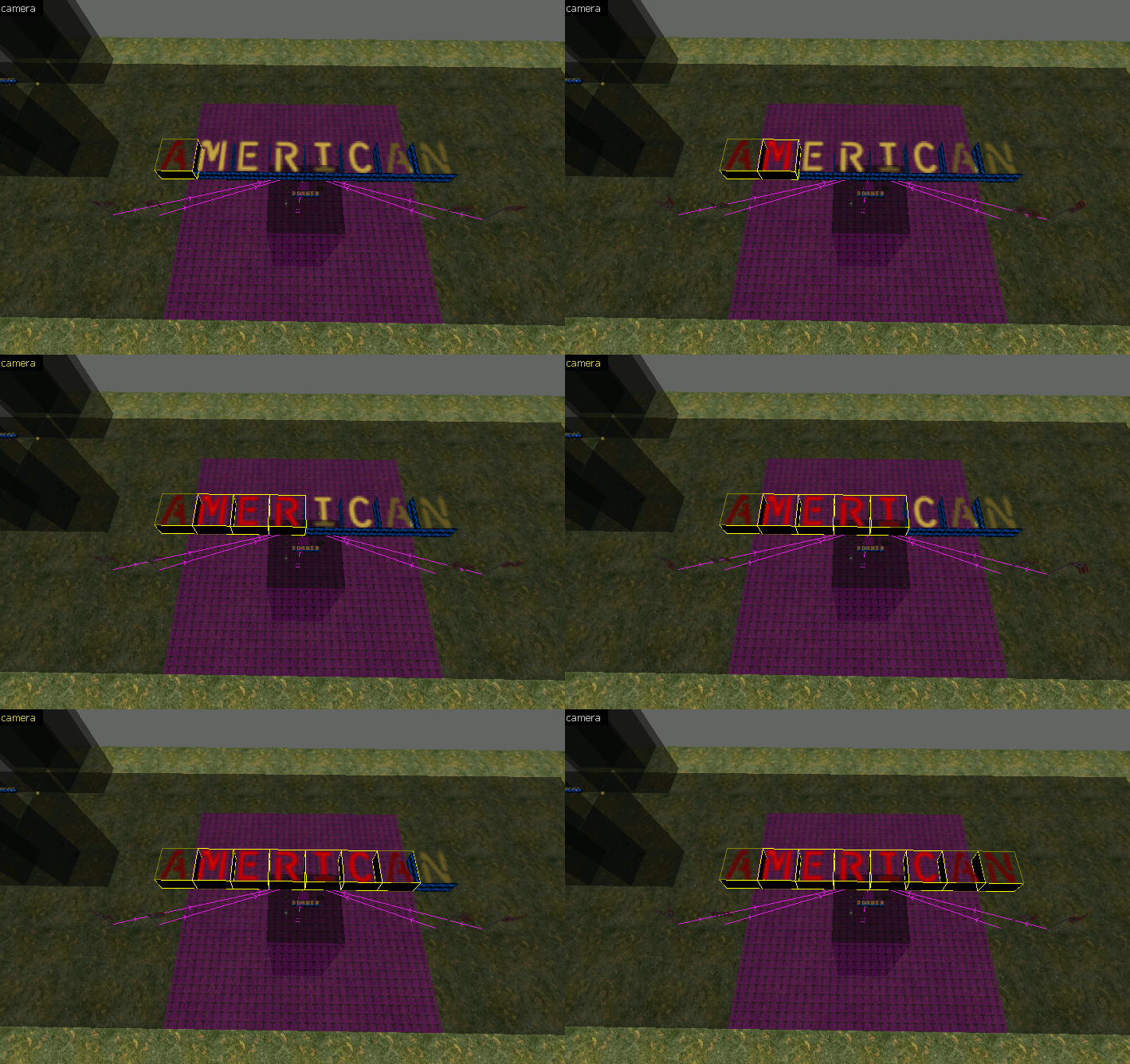

Next we want to delete the ambient label. So follow the same steps but for the smaller label.


Now we need to delete the small ambient black box, earlier we moved the 3D camera inside the larger black box so that we could select the smaller box within. This time we are going to Hide the large black box instead. So select the large black box now.


Now that the large box is out of the way we can freely select the smaller black box and delete it.


Now to get the hidden box to reappear we can press U on the keyboard or press the Unhide button on the top toolbar to the right of the Ignore Groups toggle.

Once you press the Unhide button the large black box should reappear.

At this point we want to turn the Ignore Groups toggle back off, so that we can select the full groups again.

Next we can delete all the remaining ambient setup boxes down the left side as we won’t be using them. You can either select and delete them one by one or use the drag select method we talked about earlier.


1.3 Weather Effects
If you chose a rainy environment (chemille or donner) like I did, or a snowy environment (kalt, northbound or zalec) you will probably want to turn on the weather effects for your map.
To do this we need to make sure the Ignore Groups toggle is On again.

This is so that we can interact with the info_doddetect entity within our large black setup box.

Position the camera above the group of entities inside the black box. You can select and use the H key to hide the black box, flag trigger box and the ground to make it easier to see if you would like. 
The info_doddetect entity is the pink box between the sun and the speaker at the bottom. Select it now. 
Next right click it and press Properties, to bring up the entity properties window. You can see it says info_doddetect under the Class: label so you know you have the correct entity selected. If you don’t have the info_doddetect selected you can select a different entity without closing the Properties window and it will automatically display the newly selected entity properties. 
Scroll to the bottom of the available settings, and you will find Weather at the very bottom, if you select this the display to the right will display a drop down list of available weathers to use. In my case I select Rain, but you can choose None or Snow depending on which you want.
Once you have finalized your weather select you can go ahead and close the Entity Properties window. Don’t forget to unhide any objects you might have hidden with the U key.
So as usual go ahead and save your progress CTRL + S
1.4 Assigning a Sky
Now the final step of the ambience setup is to pick which sky texture you want to use. You can either match it to the official map style you chose earlier or pick a completely different sky that you think looks good.
To change the sky texture we need to open the Map Properties page. This can be found on the very top toolbar under Map > Map Properties

When you press this a properties window will open that looks very similar to the entity properties window we used with the info_doddetect earlier.

If you accidentally click on another block in the 3D viewport while you have this open you will have to re-open it through Map > Map Properties
Now that you have it open you need to select the environment map (Sky name) property and then enter the name of the sky you wish to use. Refer to the page below for example pictures of the different skies and for a list of the sky names which you can copy/paste from.


With the sky name entered we can now close the Properties window.
Don’t forget to save your map again CTRL + S.
Recap
In this tutorial we achieved the following
- Saved the template file under a new name, with beta affix (_b1) for any future changes.
- Chose if the allies should be British or American troops.
- Decided upon an ambient style for our map.
- Cleaned up the unused assets and grouped our flags with our ambience entities.
- Picked the weather of our map, None, Rain or Snow.
- Assigned a sky texture.
In the next tutorial we can begin work on a basic layout of the map, which is where the real fun begins. So please keep going!
(COMING SOON)
 Day of Defeat
👍👍
LikeLike